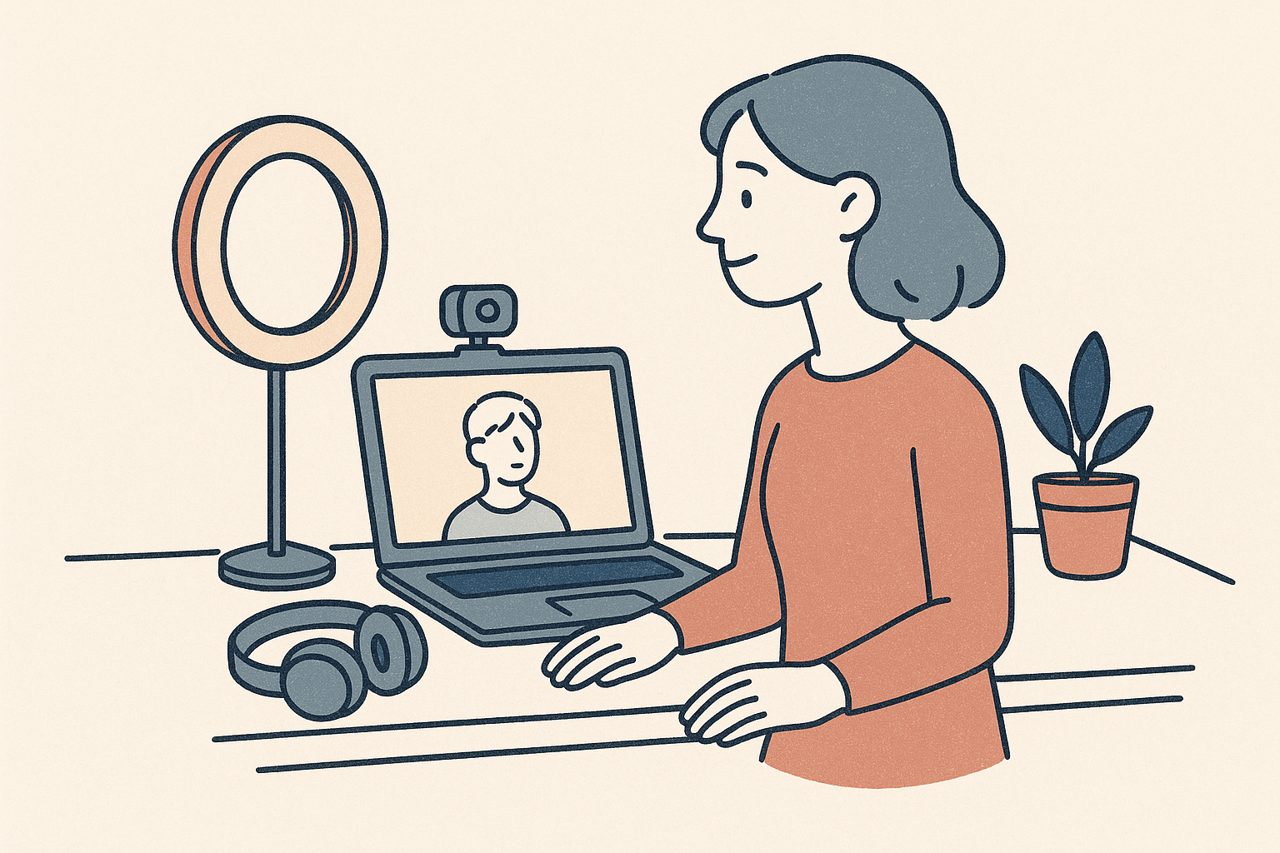
Good teletherapy comes down to a few reliable basics: your client can see your face clearly, hear you cleanly, and stay connected without drops. None of this requires a studio. With a bit of thought about your camera, your screens, and your audio, you can create a calm, professional setup that supports the work instead of getting in the way.
This is a practical setup guide, not a shopping list of expensive gear. Most of it you can arrange with what you already own.
Your camera and framing
Where your camera sits changes how present you feel to your client.
Put the camera at roughly eye level. A laptop flat on a desk points up at you, which is unflattering and makes eye contact awkward. Raising the laptop on a stand or a stack of books until the camera is level with your eyes fixes this instantly.
Frame yourself from about the chest up, centered, with a little space above your head. Your client should be able to see your face and some of your body language, which matters more when you can’t share a room.
Look at the camera, not the screen, when you’re speaking directly to your client. It feels slightly unnatural at first, but to your client it reads as eye contact, and that helps maintain rapport during a remote session.
Lighting that faces you
Lighting is the cheapest upgrade you can make, because the fix is usually just moving.
Sit facing a window or a lamp so the light falls on your face. Avoid having a bright window behind you, which turns you into a silhouette. If the room is dim, a simple desk lamp bounced off a wall softens the light and warms up your face.
The goal is modest: your client should be able to read your expression clearly. That’s it.
Internet you can rely on
A dropped call in the middle of processing is disruptive, so give your connection the best chance.
- Use a wired ethernet connection if you can. It’s more stable than Wi-Fi.
- If you’re on Wi-Fi, sit close to the router and avoid competing with large downloads or streaming on the same network.
- Close bandwidth-heavy apps you don’t need during the session.
- Keep your phone handy as a backup channel, agreed with the client in advance, so a dropped video call doesn’t become a crisis.
Always have a backup channel
Decide with your client, before you start, how you'll reconnect if the call drops, usually a quick phone call or text. Having this agreed in advance keeps a technical glitch from turning into distress. Our troubleshooting guide covers what to do when connections fail.
Audio: headphones on both ends
Audio is where teletherapy setups most often fall short, and it matters even more in EMDR because of bilateral sound.
Headphones for both you and your client do two jobs. They keep the conversation private on each end, and, crucially, they let bilateral audio pan cleanly between the left and right ear. Played through laptop speakers, that left-right separation is muddy or lost entirely. If you use bilateral sound, headphones aren’t optional.
Wired headphones or earbuds are a safe choice because they avoid Bluetooth lag. If you or your client prefer wireless, test them first so there are no surprises. A separate microphone is a nice-to-have, not a requirement; most headset or earbud mics are perfectly clear.
A second screen for your controls
Here’s a small change that makes remote EMDR much easier to run: give your controls their own space.
If you manage CloudEMDR in the same window as your video call, one covers the other. A second monitor, or even a tablet or a second browser window arranged side by side, lets you keep your client’s video in view while you adjust the dot, sound, and timer.
CloudEMDR helps here because it runs entirely in the browser. There’s nothing to install, and it works alongside whatever video platform you already use, whether that’s Zoom, Microsoft Teams, Google Meet, or Doxy.me. You open your video call in one window and CloudEMDR in another. Our video call setup guide shows how the two fit together.
Keeping the video visible for your client
In a Pro Remote Session your client sees only the moving dot, so they'll want the video window to stay on top so they can still see you. Most platforms have a "keep on top" or picture-in-picture option; there's a short walkthrough in our FAQ on keeping the video call visible.
Putting it together for a session
A workable teletherapy setup usually looks like this: laptop raised to eye level with a window in front of you, headphones on, wired internet if possible, your video call in one window, and CloudEMDR in another on a second screen or beside it. Your phone sits within reach as a backup.
Test it once end to end, ideally with a colleague, before you rely on it with a client. Check that your face is well lit, that you can hear bilateral sound clearly in both ears, and that you can reach your controls without covering the video.
When you’ve got the setup right, run through our pre-session checklist before each session so the routine becomes automatic and you can put your full attention on your client.
Try CloudEMDR with your setup
CloudEMDR runs in your browser and works alongside any video platform, so it slots straight into the setup you already have. Start free, no account needed, or try Pro Remote Sessions with the first three weeks free.