Frequently Asked Questions
Find answers to common questions about CloudEMDR, EMDR therapy tools, and how to get started.
📚 Detailed Guides
Getting Started
How do I use CloudEMDR on a video call?
What are remote sessions and how do they work?
How do I use the CloudEMDR controls?
Tools & Features
What video call platforms work with CloudEMDR?
What sound options are available?
What types of animations are available?
Teams & Organizations
Do you offer discounts for non-profits or educational institutions?
Yes, we offer special pricing for non-profits and educational institutions. Please contact us to discuss your specific needs.
What are the benefits of a team account?
Team accounts offer centralized billing, user management, and dedicated support. This makes it easier to manage multiple therapists under one umbrella.
Account Management
Is CloudEMDR Free?
The basic version of CloudEMDR is free, this is to make it accessible for anyone.
However, it’s still expensive to run. If you want to support us and get value out of this, please consider becoming a pro member. Pro Members can host unlimited Remote Sessions, get 24/7 premium support and can have a say in what features we’ll develop next. You can sign up to become a pro member here, we really appreciate it.
What do I get with CloudEMDR Pro?
With our basic version, you can do a video call with CloudEMDR by sharing your screen. This is nice, but has a few downsides: the animation isn’t always smooth for the client and they can get distracted by seeing the controls.
With CloudEMDR pro, you can do Remote Sessions: You send the client a link that they can go to and then you can control everything they see. This way the animations and sound will be of the best quality and the client won’t be distracted by your controls. This is what that looks like for the therapist:
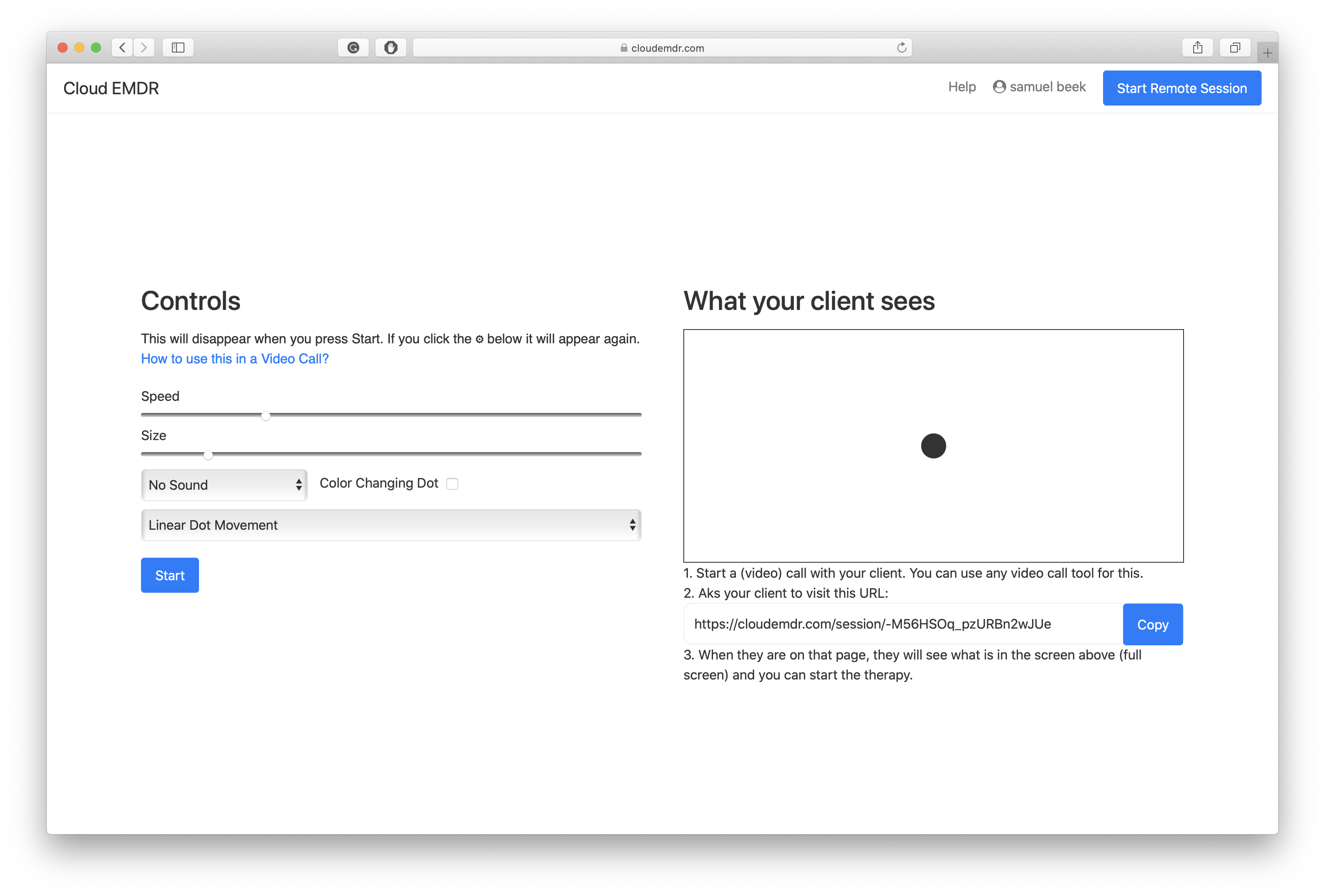
The client will only see the dot moving, no controls, nothing.
On top of that, Pro members get 5 sound options, 4 dot animation types and 24/7 premium support. Pro also helps to support the development of CloudEMDR.
Do you offer discounts if I want CloudEMDR Pro for more than 1 therapist?
Yes, we offer discounts. Please contact us.
Is CloudEMDR Pro offering anything besides remote sessions?
Yes! While remote sessions are a key feature of CloudEMDR Pro, there are several additional features that enhance your EMDR therapy practice beyond remote sessions.
Enhanced Sound Options
Pro members get access to 5 different sound options (compared to just 1 in the free version). These sounds are carefully designed to complement the visual bilateral stimulation and can be used to enhance the therapeutic experience. The variety allows you to choose sounds that work best for different clients and session types, whether you’re conducting in-person sessions, screen-sharing sessions, or remote sessions.
Multiple Animation Patterns
Pro members have access to 7+ animation patterns (compared to only 2 in the free version). These diverse movement patterns give you more flexibility to tailor the bilateral stimulation to your client’s needs. Different animation types can create different therapeutic effects, and having more options allows you to customize sessions more effectively. Whether you need smooth, flowing movements or more structured patterns, you’ll have the variety to find what works best for each client.
Stroop Test
Pro members get access to the Stroop Test, an additional therapeutic tool that’s not available in the free version. The Stroop Test is another effective way to tax the working memory during EMDR therapy sessions. It presents 16 words in different colors and works great for remote sessions, including when clients are using mobile devices. The Stroop Test offers multiple languages (English, Dutch, Norwegian, and more) and provides a different type of bilateral stimulation that can be valuable for certain clients and session types.
Custom Backgrounds
Pro members can upload custom backgrounds to personalize the therapy environment. This feature allows you to create a more tailored experience for your clients, whether you want to use calming imagery, client-specific backgrounds, or other visual elements that enhance the therapeutic setting.
24/7 Premium Support
Pro members receive 24/7 premium support with priority response times. This means you have access to expert assistance whenever you need help with setup, troubleshooting, feature questions, or any technical issues. Whether you’re preparing for a session, experiencing a technical problem, or want guidance on best practices, the premium support team is available to help ensure your practice runs smoothly.
Smooth Animation Quality
While free users experience poor animation and sound quality (especially during screen-sharing sessions), Pro members get 100% smooth movements for their clients. This ensures that the bilateral stimulation is delivered at the highest quality, which is crucial for effective EMDR therapy.
Ongoing Development
Pro membership also supports the ongoing development of CloudEMDR, meaning you’ll have access to new features and improvements as they’re released. Pro members often get early access to new capabilities, and your subscription helps fund the continued enhancement of the platform.
Is CloudEMDR Pro valuable if I don't use remote sessions?
Absolutely! CloudEMDR Pro offers significant value even if you primarily conduct sessions using screen-sharing or in-person setups. While remote sessions are a powerful feature, there are many other benefits that make Pro valuable for therapists who use different session formats.
Enhanced Features for Screen-Sharing Sessions
If you’re using screen-sharing for video calls with clients, Pro membership significantly improves your experience:
More Animation Options
Pro gives you access to 7+ animation patterns (compared to just 2 in the free version). This variety allows you to better customize the bilateral stimulation for each client. Different clients respond differently to various movement patterns, and having more options means you can find the perfect animation style for each therapeutic session.
Expanded Sound Library
With 5 sound options available to Pro members (vs. 1 in the free version), you have much more flexibility to choose audio that complements the visual stimulation and supports your client’s therapeutic goals. Different sounds can enhance different types of sessions, and having multiple options allows you to experiment and find what works best.
Stroop Test for Variety
The Stroop Test feature, exclusive to Pro members, offers an alternative form of bilateral stimulation that can be particularly effective for certain clients. It works excellently in screen-sharing scenarios and provides variety when you want to change up the stimulation type during or between sessions.
Custom Backgrounds
The ability to upload custom backgrounds allows you to create a more personalized and professional presentation during screen-sharing sessions. This can help create the right therapeutic environment and make sessions feel more tailored to your practice and your clients.
Better Quality and Professionalism
Even in screen-sharing mode, Pro membership provides better quality animations and sounds. The improved quality ensures that your clients receive the best possible bilateral stimulation experience, which is essential for effective EMDR therapy.
Premium Support When You Need It
Having 24/7 premium support is valuable regardless of how you conduct sessions. Whether you’re setting up for a screen-sharing session, troubleshooting an issue before a client appointment, or seeking guidance on using features effectively, having access to responsive support can save time and reduce stress.
Supporting Development and Sustainability
By subscribing to Pro, you’re directly supporting the development and maintenance of CloudEMDR. This ensures that the platform continues to improve, receives regular updates, and remains available for the EMDR therapy community. Your subscription helps fund new features, security updates, and ongoing platform improvements that benefit all users.
Future-Proofing Your Practice
Pro membership gives you access to new features as they’re developed. If your practice evolves to include remote sessions in the future, or if new features are added that would benefit your screen-sharing sessions, you’ll already have access to everything CloudEMDR Pro has to offer.
In summary, Pro membership provides substantial value through enhanced features, better quality, professional support, and the ability to customize sessions more effectively—all of which are valuable whether you’re using remote sessions, screen-sharing, or in-person setups.
How can I purchase this?
The basic version of CloudEMDR is free, this is to make it accessible for anyone. However, it’s still expensive to run. If you want to support us and get value out of this, please consider becoming a pro member. Pro Members can host unlimited Remote Sessions, get 24/7 premium support, have 5 sound options, multiple dot animations, and can have a say in what features we’ll develop next. You can sign up to become a pro member here, we really appreciate it.
Subscribe to CloudEMDR ProHow to reset your password on CloudEMDR
It’s very common to forget your password, so we’ve made it super easy to reset your password in a secure way.
- Click here or go to https://cloudemdr.com/reset-password
- Type in your email address in the email address field. (Note: this should be the email address you use to log in to CloudEMDR)
- Click Send Password Reset Email
- You will now receive an e-mail with instructions to reset your password. If you don’t receive an email, it means that the email you entered was not associated with a CloudEMDR account.
After you have reset your password, your previous password won’t be usable.
How can I use a coupon at checkout?
Great, you’ve received a coupon from someone. This will give you a discount on the CloudEMDR Pro subscription.
This video explains how to use a coupon:
Is CloudEMDR Secure and GDPR-Compliant?
We take your privacy, and your clients’ privacy, seriously.
We don’t collect any data on your clients. They simply open the link you send them and press Start Session — nothing about them is saved.
For therapists, we only save the data we truly need, like your email address for your account. We collect it by fair and lawful means, with your knowledge and consent, and we protect it within commercially acceptable means against loss, theft, and unauthorized access. All communication runs over a secure SSL connection.
Are you GDPR and AVG proof?
Yes. CloudEMDR is compliant with the GDPR and the Dutch AVG. You can read the details in our privacy policy.
Usage
How can my clients see me while they're doing the therapy?
When you’re doing a Remote Session with CloudEMDR, it’s often desirable for your clients to see you while they are doing the therapy.
This is currently possible with Zoom.
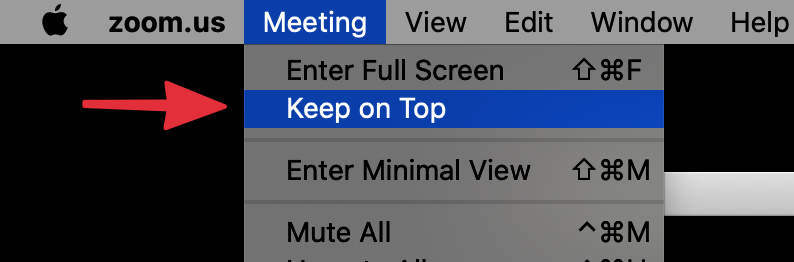
- In Zoom, ask your client to go to Meeting
- And then select Keep on Top. This will make sure that the video call stays on top of CloudEMDR.
This is what that menu looks like:
This is a video that you can share with your clients to explain how to do this:
You can share the link to the video with your clients: https://bit.ly/37dXLBu
How can I see my clients while they’re doing the therapy?
When you’re doing a Remote Session with CloudEMDR, it’s often desirable for you to see your clients while they are doing the therapy.
This is currently possible with Zoom.
- In Zoom, go to Meeting
- And then select Keep on Top. This will make sure that the video call stays on top of CloudEMDR.
This is what that menu looks like:
Tools
How to do EMDR Therapy with Skype?
This video explains how to use CloudEMDR with Skype.
Do you have to have Skype for Business to do this?
No, it works with all versions of Skype.
I’m using Skype but I don’t see a screen sharing option.
Skype only shows the screen sharing option when somebody has joined the call.
How to do EMDR Therapy with Zoom?
This video walks through both ways of using Zoom and CloudEMDR:
As said in the video, the best way to use Zoom and CloudEMDR is with remote sessions, click here to read more about that.
How can my clients see me while they’re doing the therapy?
- While you’re having the call, ask your client to go to Meeting
- And then select Keep on Top. This will make sure that the video call stays on top of CloudEMDR.
How to do EMDR Therapy with Microsoft Teams?
Microsoft Teams works great with CloudEMDR. You can use CloudEMDR with Microsoft Teams in two ways: by sharing your screen (free) or by using remote sessions (Pro feature, recommended).
Option 1: Screen Sharing (Free)
This method is free and works with any Microsoft Teams account. The client will see your controls during the session.
Step-by-step instructions for screen sharing:
- Start or join a Microsoft Teams meeting with your client
- Open CloudEMDR in your web browser (go to CloudEMDR.com)
- Sign in to CloudEMDR if you haven’t already
- Set up your EMDR session - configure your dot settings, speed, size, and other controls
- In Microsoft Teams, click the Share button (usually in the meeting controls at the bottom)
- Select “Share Screen” or choose the browser window/tab where CloudEMDR is open
- Start your EMDR session in CloudEMDR - your client will see the moving dot on their screen
- Control the session using CloudEMDR controls - note that your client will see these controls
Tips for screen sharing with Microsoft Teams:
- Make sure your browser window is large enough for the client to see clearly
- Consider using full-screen mode in your browser for a better view
- Test your audio settings if you’re using sound options
- Your client will see your controls, which may be distracting for them
Option 2: Remote Sessions (Pro - Recommended)
Remote sessions provide the best experience with high-quality animations and your clients won’t see your controls. This requires CloudEMDR Pro.
Step-by-step instructions for remote sessions:
- Start or join a Microsoft Teams meeting with your client
- Open CloudEMDR in your web browser (go to CloudEMDR.com)
- Sign in to your CloudEMDR Pro account
- Click “Start A Remote Session” in the top right of CloudEMDR
- Configure your EMDR settings on the left side - you’ll see the controls panel
- Copy the session URL that appears on the right side - click the Copy button next to the link
- Send the URL to your client via Microsoft Teams chat or email
- Ask your client to open the URL in their browser and click Start Session
- Once your client is connected, they’ll see the moving dot in full screen on their device
- Control the session from your controls panel - your client will only see the moving dot, not your controls
Benefits of remote sessions with Microsoft Teams:
- High-quality animations - smooth, professional bilateral stimulation
- Client focus - clients only see the moving dot, not distracting controls
- Flexible setup - works with any video call platform, including Microsoft Teams
- Better experience - optimized for remote EMDR therapy
Common questions
Do I need a specific Microsoft Teams plan?
No, screen sharing works with any Microsoft Teams account (free or paid). Remote sessions work with any video call platform, including Microsoft Teams.
Can I use Microsoft Teams with CloudEMDR on mobile?
Remote sessions work great on mobile devices - your client can access the remote session URL on their phone or tablet while you conduct the video call through Microsoft Teams on your computer.
What if my client has trouble connecting to the remote session?
Make sure your client:
- Has a stable internet connection
- Opens the URL in a modern web browser (Chrome, Firefox, Safari, or Edge)
- Allows pop-ups if prompted
- Has JavaScript enabled in their browser
If issues persist, you can use screen sharing as a backup option, or contact CloudEMDR support at support@cloudemdr.com for assistance.
How to do EMDR Therapy with Google Meet?
Google Meet works great with CloudEMDR. You can use CloudEMDR with Google Meet in two ways: by sharing your screen (free) or by using remote sessions (Pro feature, recommended).
Option 1: Screen Sharing (Free)
This method is free and works with any Google Meet account. The client will see your controls during the session.
Step-by-step instructions for screen sharing:
- Start or join a Google Meet with your client
- Open CloudEMDR in your web browser (go to CloudEMDR.com)
- Sign in to CloudEMDR if you haven’t already
- Set up your EMDR session - configure your dot settings, speed, size, and other controls
- In Google Meet, click the Present now button (usually in the bottom-right corner)
- Choose “A tab” and select the browser tab where CloudEMDR is open, or select “Your entire screen”
- Click “Share” to start sharing
- Start your EMDR session in CloudEMDR - your client will see the moving dot on their screen
- Control the session using CloudEMDR controls - note that your client will see these controls
Tips for screen sharing with Google Meet:
- Sharing a specific tab often provides better quality than sharing your entire screen
- Make sure your browser window is large enough for the client to see clearly
- Consider using full-screen mode in your browser for a better view
- Test your audio settings if you’re using sound options
- Your client will see your controls, which may be distracting for them
Option 2: Remote Sessions (Pro - Recommended)
Remote sessions provide the best experience with high-quality animations and your clients won’t see your controls. This requires CloudEMDR Pro.
Step-by-step instructions for remote sessions:
- Start or join a Google Meet with your client
- Open CloudEMDR in your web browser (go to CloudEMDR.com)
- Sign in to your CloudEMDR Pro account
- Click “Start A Remote Session” in the top right of CloudEMDR
- Configure your EMDR settings on the left side - you’ll see the controls panel
- Copy the session URL that appears on the right side - click the Copy button next to the link
- Send the URL to your client via Google Meet chat or email
- Ask your client to open the URL in their browser and click Start Session
- Once your client is connected, they’ll see the moving dot in full screen on their device
- Control the session from your controls panel - your client will only see the moving dot, not your controls
Benefits of remote sessions with Google Meet:
- High-quality animations - smooth, professional bilateral stimulation
- Client focus - clients only see the moving dot, not distracting controls
- Flexible setup - works with any video call platform, including Google Meet
- Better experience - optimized for remote EMDR therapy
Common questions
Do I need a specific Google Meet plan?
No, screen sharing works with any Google Meet account (free Google accounts or Google Workspace). Remote sessions work with any video call platform, including Google Meet.
Can I use Google Meet with CloudEMDR on mobile?
Remote sessions work great on mobile devices - your client can access the remote session URL on their phone or tablet while you conduct the video call through Google Meet on your computer.
What if my client has trouble connecting to the remote session?
Make sure your client:
- Has a stable internet connection
- Opens the URL in a modern web browser (Chrome, Firefox, Safari, or Edge)
- Allows pop-ups if prompted
- Has JavaScript enabled in their browser
If issues persist, you can use screen sharing as a backup option, or contact CloudEMDR support at support@cloudemdr.com for assistance.
Can I share audio through Google Meet while using CloudEMDR?
Yes, when using screen sharing, you can share audio by selecting “Share tab audio” when choosing to share a tab. However, for the best audio experience with CloudEMDR’s sound options, remote sessions are recommended as they provide better audio quality for your clients.
How to do EMDR Therapy with Doxy.me?
You can use CloudEMDR with Doxy.me in two ways.
The first way is to share your screen in Doxy.me. This is free, but your client will see your controls and the animation is less smooth. Doxy.me screen sharing is available on paid plans from a desktop computer — see Doxy.me’s screen share help for how to turn it on.
The best way is to use a remote session. You send your client a link, they only see the moving dot, and you keep the controls — so nothing distracts them and the animation is smoother. Read how to set one up here.
Because Doxy.me runs in the browser too, remote sessions work especially well: your client can keep the Doxy.me call in one tab or window and open the CloudEMDR link in another.
Can my client keep seeing me during the session?
Yes — your client can keep the Doxy.me video call visible on top of CloudEMDR. Learn how here.
About EMDR
What is EMDR?
EMDR (Eye Movement Desensitization and Reprocessing) is an evidence-based therapy method designed to treat post-traumatic stress disorder. It’s also used to treat other conditions, like anxiety, grief, and panic disorder, for both kids and adults.
During the therapy, the client thinks about emotionally disturbing material while focusing on an external stimulus, such as eye movement or sound. More information can be found on the official EMDR website.
Features
Can I use CloudEMDR for group therapy sessions?
Yes! CloudEMDR works great for group therapy sessions. You can have up to 50 participants in a single group session.
How it works
- Start your CloudEMDR session and set up your bilateral stimulation
- Share the session link with all group participants via your video platform’s chat
- Everyone clicks the link to join the synchronized bilateral stimulation
- You control everything from your CloudEMDR interface while maintaining video contact
Important to know
- Synchronized experience: All participants see the same dot movement at the same time - this is actually perfect for group therapy as it creates a unified experience
- Works with any paid account: You don’t need a special group therapy plan
- Up to 50 people: If you can have a video call with that many people, CloudEMDR will work
- Best for calming exercises: Slower dot movements work particularly well for group sessions
Best practices
- Make sure everyone is in a comfortable, private space
- Ensure all participants have good audio quality
- Verify stable internet connections
- Test the setup with a small group first
- Share the CloudEMDR link in your video platform’s chat for easy access
Real success story
“It worked amazingly!! I had 11 clients online in the group and everyone was able to get on without any freezing!” - Brandi Edgerton, Licensed Therapist
Perfect for group therapy, supervision sessions, or teaching others how to use CloudEMDR!