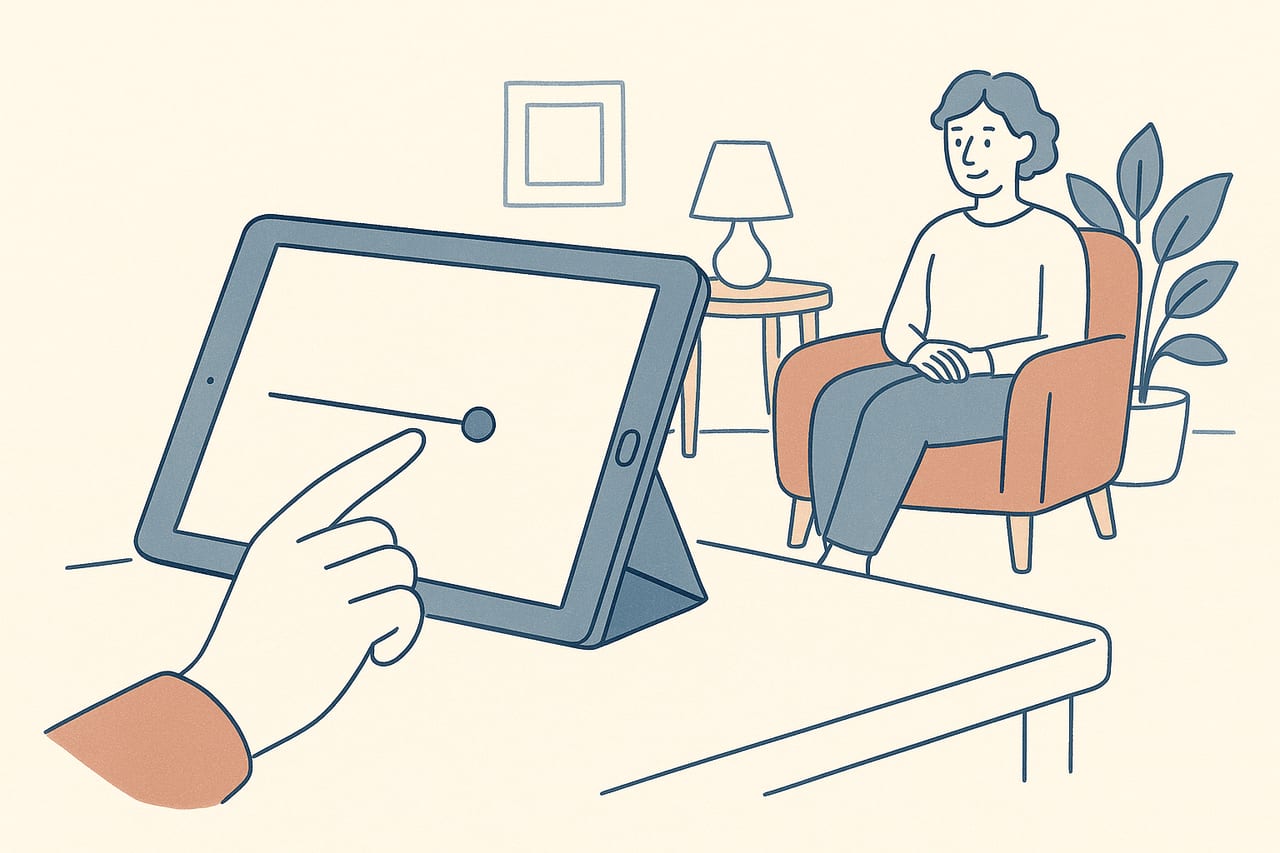
Not every client joins a remote session from a laptop at a desk. Some will only have a phone or tablet available, whether that's their only device or just what's easiest to prop up in the room they have. CloudEMDR runs in a browser, so a phone or tablet works as a client-side viewing device — you just need to plan for the smaller, differently-shaped screen.
Why this comes up more than you’d expect
A laptop with a full keyboard and a stable stand is the easy case, but plenty of clients don’t have one readily available, or find a phone simpler to manage than opening a video call on a computer they use less often. Others are joining from a car during a break, a shared living space where a phone is more private than a shared computer, or a location where a tablet propped on a shelf is genuinely the most stable option they have. None of that should block the session — it just changes what you check beforehand.
Screen orientation matters more than screen size
A phone held upright (portrait) gives the dot a narrow, tall path to move across, which changes how a horizontal or diagonal pattern actually looks and feels compared to a wider laptop screen. Landscape orientation — turning the phone or tablet sideways — gives the dot a wider path and generally reproduces the intended movement more faithfully.
Ask the client to rotate to landscape before you start, and confirm the browser follows (most do automatically, but a locked rotation setting on the device can prevent it). It’s worth doing this as a quick check during preparation rather than discovering it mid-session.
Getting the device stable
A phone held in the hand drifts, tilts, and eventually gets tiring to hold at the right angle for tracking a moving dot. A stand — even an improvised one, like the device leaned against a stack of books or a mug — makes a real difference to how comfortably the client can watch the screen for an extended set.
If the client doesn’t have a dedicated phone stand, suggest they look around for something that works: a cup, a box, a book propped open. The goal is simply a device that stays at a steady angle without the client’s arm doing the work.
Check the distance, too
A phone screen held at a comfortable reading distance is smaller in the client's field of view than a laptop screen would be at typical desk distance. If the dot feels small or hard to track, having the client move the stand a little closer usually solves it faster than adjusting the dot's size setting.
Browser and connection considerations
CloudEMDR runs in the browser your client already has, so there’s no separate app to install — they simply open the link you send them, the same way they would on a computer. A modern, up-to-date mobile browser (the one that came with the device, or a current version of another major browser) is generally the smoothest option; very old devices or outdated browser versions are more likely to show lag or rendering issues with any animated content, not just this kind.
Mobile data can work in place of Wi-Fi if the client’s connection is otherwise unreliable, but it’s worth confirming their data plan and signal strength can sustain a video call plus the session link for the full length of the appointment, particularly for a longer block like the ones covered in our guide to remote EMDR intensives. If Wi-Fi is available and stable, it’s generally the safer default.
Talking the client through it
Because you likely won’t be looking over their shoulder, a short verbal walkthrough at the start of the session saves time later:
- Confirm they can see the full dot path without it running off the edge of the screen.
- Ask them to hold the device (or check the stand) at a distance where their eyes don’t have to strain.
- Check headphones are actually connected if you’re using bilateral sound — a phone’s built-in speaker is a poor substitute, and it’s an easy thing to overlook when the phone is unfamiliar territory for a session.
- Ask them to silence notifications for the session. A phone is more likely to interrupt itself with alerts than a laptop set up specifically for the call.
Have a backup plan
If a client's only device is an older phone that struggles with the animation, or their mobile signal is genuinely unreliable, it's worth discussing alternatives ahead of time — borrowing a laptop or tablet for the session, or, if the technical issues can't be resolved, considering whether remote delivery is the right fit for that particular session.
Dot settings that read well on a smaller screen
Speed and size settings that work well on a laptop may need small adjustments on a phone screen. If a client reports the dot feels too fast to track comfortably on a smaller display, a slight reduction in speed is often enough to compensate — the controls guide covers where to adjust this, and our guide to dot speed, size, and patterns goes into more depth on choosing settings for a given client. Simpler movement patterns also tend to translate more predictably to a small screen than the more complex options, at least until you’ve confirmed how a particular client’s device handles the animation.
The bottom line
A phone or tablet is a fully workable way for a client to join a remote EMDR session — it just asks for a slightly different setup checklist than a laptop does. A few minutes of preparation around orientation, stability, and audio covers nearly everything that tends to go wrong.
Works on whatever device your client has
CloudEMDR runs entirely in the browser, so your client just opens the link you send — no app, no install, on a laptop, tablet, or phone. Try it free, or start a three-week Pro trial for distraction-free Remote Sessions.